
 AI
What Is AI Implementation for Businesses in Uzbekistan?
AI implementation is not adding a chatbot. It is embedding intelligent agents into real business workflows - lead qualif...
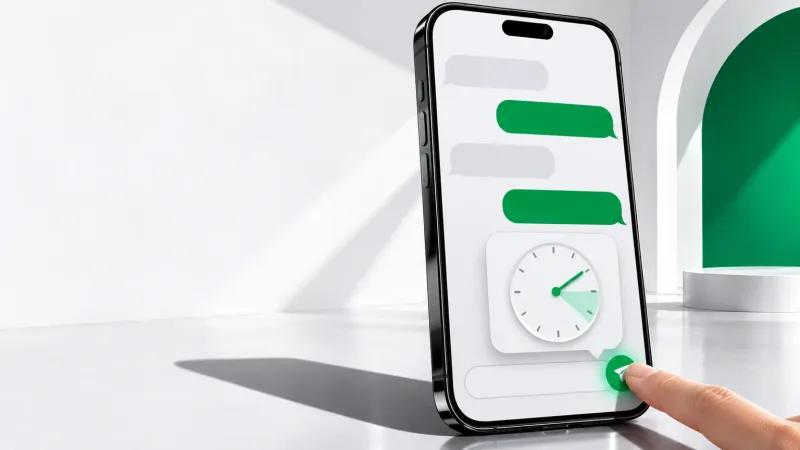
How to schedule WhatsApp messages? Once the feature appears on your account, write your message, press and hold the send button, then choose the time you need. This lets you schedule a message in advance for an individual or group chat.
For businesses, the limitation is clear: a scheduled message is not automation. It sends prepared text at a specified time. It does not check an order’s status, send a reminder based on a CRM stage, or answer a customer’s question on its own. Schedule one-off messages on your phone. Manage process-driven communication through CRM and API.
According to a TechCrunch report dated November 25, 2026, WhatsApp will begin rolling out message scheduling for individual and group chats globally to iOS and Android users. Verify this date and the feature’s availability before publishing. The source does not provide a separate launch timeline for Uzbekistan.
It works simply. Open a chat, write your message, and press and hold the send button. Then choose when it should be sent. According to the source, messages can be scheduled at least 10 minutes and up to 14 days in advance.
No third-party app is expected to be required to schedule WhatsApp messages on Android or iPhone. If the feature is not visible yet, do not give an unknown scheduling app access to your account or accessibility permissions. Update WhatsApp first. Then check whether the feature has reached your account.
This option is useful for a one-off reminder, a group announcement, or a prepared message that needs to go out in the morning. However, the announced feature does not mention recurring messages, customer segmentation, approval workflows, analytics, or CRM integration.
Customers in Uzbekistan may contact a business through Telegram, Instagram, or Facebook. WhatsApp may be needed for some international partners, export customers, and audiences that prefer this channel. Choose channels based on where your customers write to you, not on what happens to be fashionable.
Built-in scheduling makes everyday work easier. A manager can prepare a message on Friday and schedule it for Monday morning, or set a separate reminder before a meeting. There is no need to copy a message from a calendar task and send it manually later.
The problem for a sales team is often not simply sending a message on time. The system does not know which customer should receive which message, in what situation, or with what wording. If a manager leaves the company, the messages scheduled on their phone may not be visible to the team. A supervisor cannot verify those reminders in CRM reports either.
If you have few customers and your messages are one-off, built-in scheduling is enough. If a message depends on an order, payment, meeting, or sales stage, do not leave it on an employee’s phone. That message should be managed from a central system.
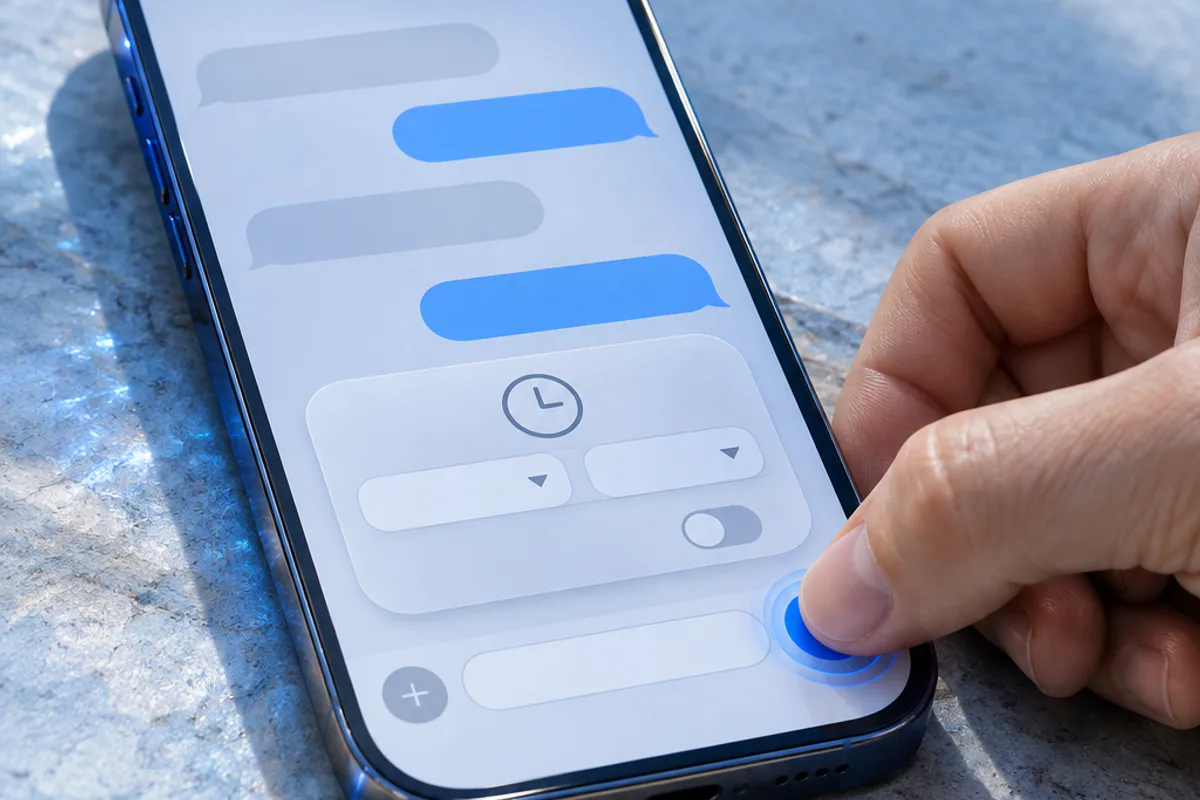
First, determine what should trigger the message. If you only need a date and time, WhatsApp’s built-in feature is enough. If the message depends on a CRM status, receipt of payment, or a customer’s question, you need an automated WhatsApp messaging workflow.
| Need | Built-in scheduling | Separate automation |
|---|---|---|
| One-off reminder | Suitable | Not necessary |
| Weekly recurring message | Not included in the announced feature | Required |
| Message triggered by a CRM stage | Not suitable | Required |
| Automatic reply to a customer’s question | Not suitable | A chatbot or agent rule is required |
| Sending after manager approval | Not suitable | An approval workflow is required |
WhatsApp Business lets you configure greeting messages and replies outside business hours. In a more complex workflow, every message should use the same field map: customer identifier → communication channel → reason for message → sending time → template → responsible employee → delivery status → customer response.
The most dangerous mistake is not in the wording. It is sending the same message twice. If the CRM and messenger cannot see each other’s status, a manager may write to the customer manually. A few minutes later, the automation sends the same message again. To prevent this, delivery status across all channels must be stored in one place.
Do not fully automate conversations involving confidential information, complaints, or unusual orders. These conversations should be transferred to an agent. The employee should be able to see the previous correspondence and order status on one screen.
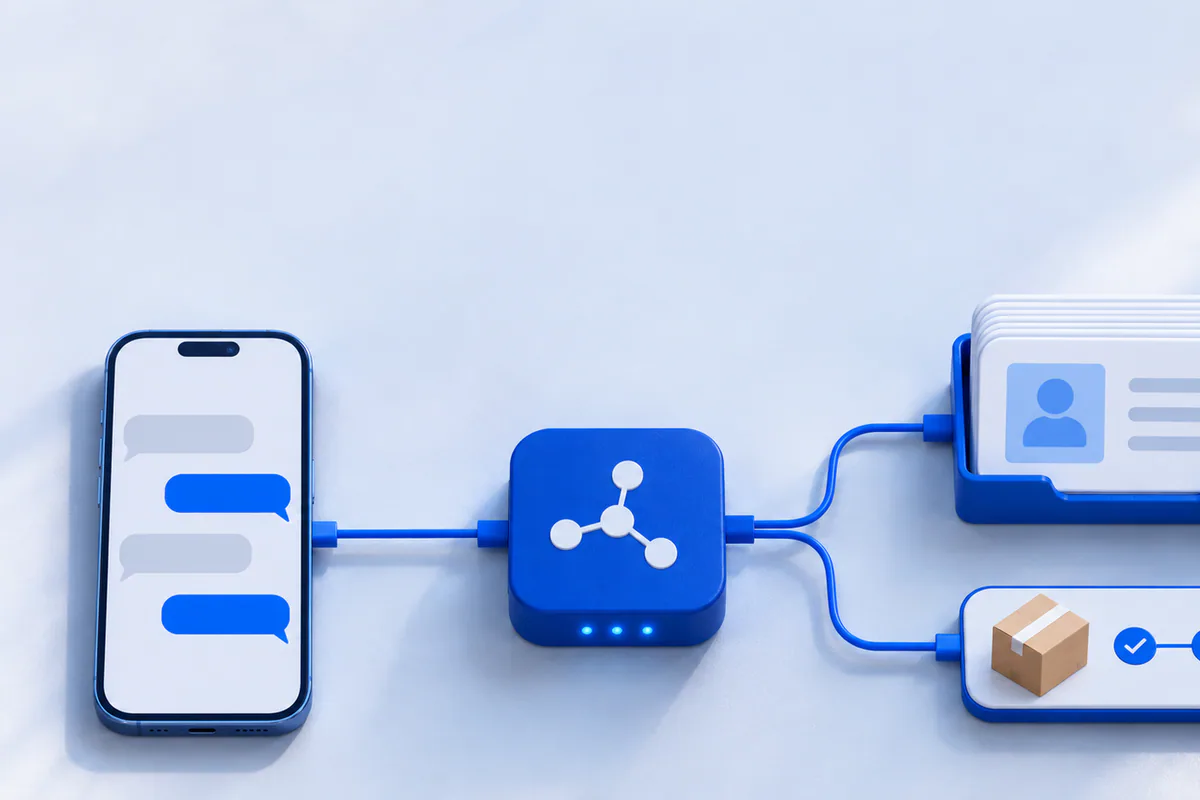
At Celion, we do not start by deciding which chatbot to connect. We begin by mapping the triggers. For example, creating a meeting may prepare a reminder, an approaching payment deadline may create a task for the responsible employee, or a change in order status may generate a customer message.
We then design the architecture that connects the required channels to the CRM. These may include Telegram, Instagram, Facebook, and, where necessary, WhatsApp. A language and template are defined for every message. The system should know why a message is being sent and when the conversation should be transferred to an agent. Choosing Uzbek, Russian, or English is not a matter of quality. The choice depends on the customer and the situation.
In a WhatsApp Business automation project, API integration and CRM fields are treated as parts of one system. Chatbot rules, employee permissions, and logging are included in the same workflow. We do not build scripts that merely send messages. The system must show what was sent and to whom, manage retries after errors, and give employees enough context to continue the conversation.
The decision rule is simple. If a message needs to be sent to one person at one specific time, use built-in scheduling. If it is triggered by a business event or requires management oversight, move it into a centralized CRM- and API-based workflow.
Celion designs chatbots, CRM integrations, and automated customer messaging workflows for Telegram, Instagram, Facebook, and WhatsApp. The first step is to map the messages you want to send by trigger, template, and responsible employee.
Callback
Leave your details and we will contact you shortly.
Become a Partner
Leave your contact details and we will get back to you shortly.
Order Service
Leave your phone number and we will contact you shortly.